Demi: the assistant that lives inside your Mac. The install, what it sees, and what it does with it
My invite link, the install step by step, the permissions it asks for on the Mac, what happens to your email, and the switch that turns off training on your chats and your screen, from now on.
What Demi is, and who it fits
Demi is a personal assistant you install as an app on your Mac. You connect your email, your calendar and tools like Slack, and it learns how you work.
It finds what is waiting for you and prepares the next step: an email draft, prep for a meeting, an update to a record in your CRM.
You approve, it sends. Nothing goes out without your approval.
It fits you if:
- You work on a Mac.
- Your email and calendar are in Gmail and Google Calendar, or in Outlook.
- You have requests that wait too long for a reply.
My invite link
Open the invite linkDisclosure: when someone joins through my link, I get Demi credits.
The link opens a regular signup. It is free, with no credit card. When you sign up, you get credits worth up to $50.
Contents
The install, step by step
What it sees on your Mac
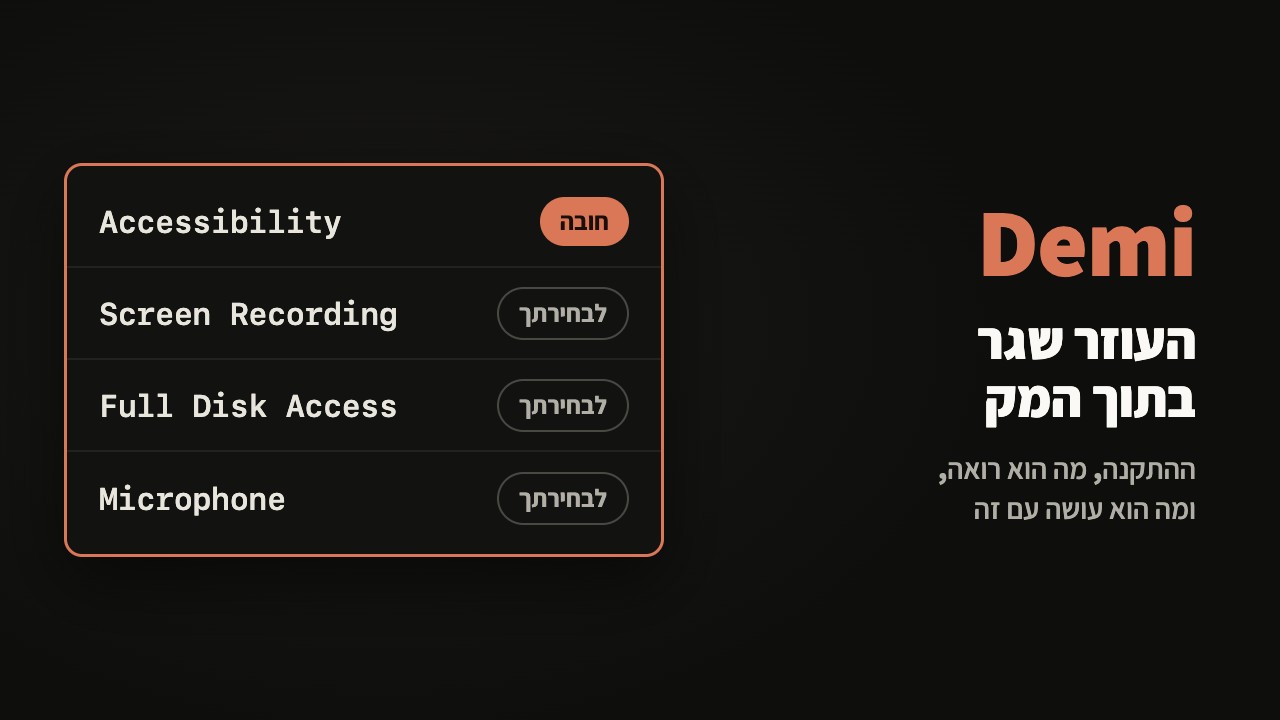
When you install it, macOS asks you to approve permissions. This is what each one opens to it, according to Demi's privacy policy:
- Accessibility, required. It sees what is open in front of you and what you are working with, while the app is running.
- Screen Recording, your choice. Screenshots and a recording of your screen.
- Full Disk Access, your choice (in the policy: Disk Access). Local files and apps, like WhatsApp and iMessage.
- Microphone, your choice. Recording and transcribing meetings.
Anything that is not required, you can leave unapproved, or turn off later in System Settings, under Privacy & Security.
In Mac apps that have no connection, it reads the screen and acts in them, with your permission. On my Mac it already offered, on its own, to also catch requests from WhatsApp. According to the policy, access to WhatsApp and iMessage on the Mac goes through Full Disk Access.
What it does with your data
- Email: it reads the content of your emails, the attachments and the metadata, to write drafts and summaries and to do what you asked.
- Calendar: titles, times, location, call links and attendees.
- The data goes to Demi's servers and to model providers, to write the drafts and summaries.
- Email and calendar from Google are not used to train models that serve all users. This is written in the policy, and it applies in every case. This commitment is written only about data from Google.
- Everything else can be used for training: your chats with Demi, what it sees on the screen, and files you gave it access to. If you do not want that, turn off the
Improve Demi for everyoneswitch in your account settings (the name is from the policy). Turning it off applies from that moment on, not backward. And if your content is reviewed because of a safety concern, Demi can still use it to detect harmful content. - Disconnecting Google stops the access, but does not delete what was already stored. To delete it: delete your account from the settings in the app, or email privacy@demi.ai.
My recommendation: connect only email and calendar first. After a week, decide whether to open more to it.
The task it holds for me
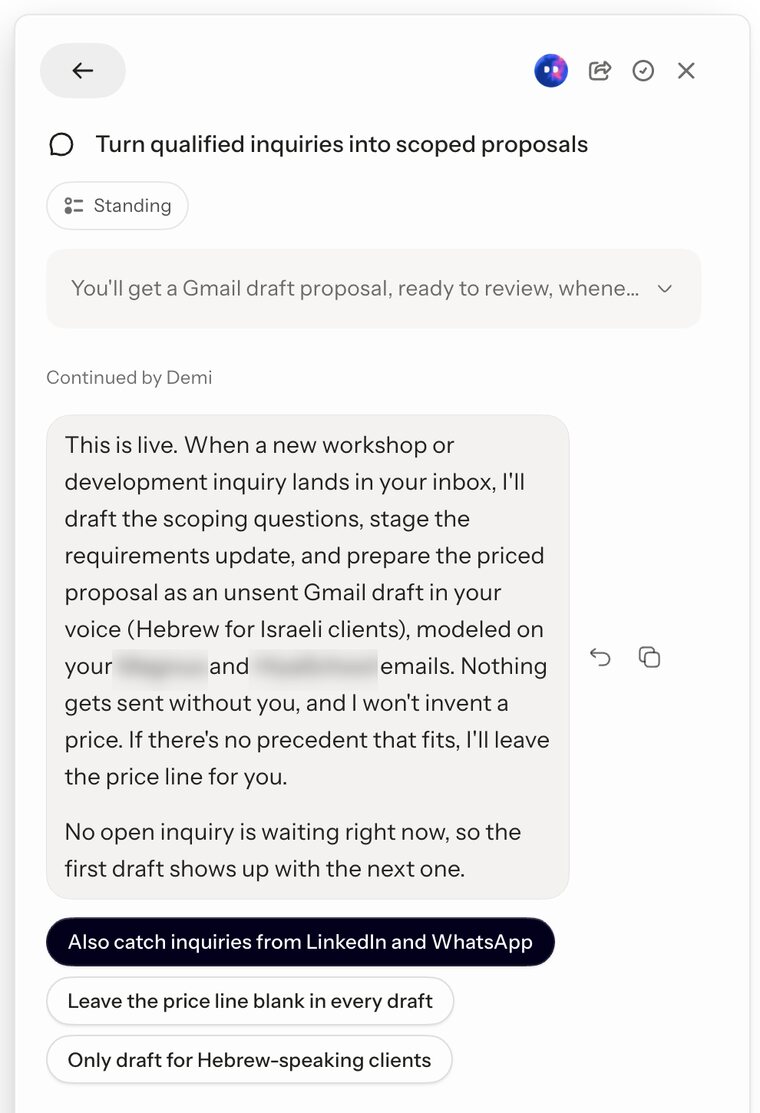
It holds one standing task for me. From the next email inquiry about a workshop or development work, it will prepare a draft price proposal.
- It will build the draft from emails I sent in the past to two clients.
- The draft will be saved as a draft in Gmail. It is not sent.
- It does not invent a price. When it has no earlier price to base it on, it leaves the price line empty for me.
If you want something similar, start with one task that repeats for you every week, and tell it where to learn your style.
What it costs
- Free: $0. A morning summary once a week, all integrations, and credits worth up to $50 when you sign up.
- Individual: $25 a month. A morning and evening summary every day, standing tasks (routines), and 5,000 credits a month.
- When the plan's credits run out: buy more, move to a higher plan, or wait for the next cycle. According to Demi, they do not charge you for going over without you knowing.
Standing tasks (routines) are part of Individual.
How to know it worked
- Open Demi and go to
Integrations. Next to your email and calendar, it shows that they are connected. - Let it work. On Free, a morning summary comes once a week. On Individual, a morning and evening summary comes every day. That is where you see what is waiting for you.
Seeing nothing?
- Check in
Integrationsthat your email is really connected. If it is not, connect it again. - Check in
System Settings, underPrivacy & Securityand thenAccessibility, that Demi is on. - Give it more time. It learns from your work, and at the start it has little to see.
demi.ai/pricing, demi.ai/integrations, demi.ai/how-it-works, demi.ai/legal/privacy-policy, checked on November 14, 2026.