Upscale an image 4x for free: a simple Upscayl install guide
Upscayl is free, open-source software that makes a small image 4x bigger and sharper, on your own computer. The install on Mac and Windows, your first upscale in four steps, which model to pick, and what it cannot do.
What Upscayl is
Upscayl takes a small or compressed image and makes it 2x to 4x bigger, with a model that fills in the missing detail. The model runs on your own computer's graphics card.
- Free. Open source, AGPL-3.0. On November 21, 2026 it had 53,018 stars on GitHub.
- Instead of a paid tool. Topaz Gigapixel, for example, lists at $149 a year. I did not run Topaz, so I compare the price, not the results.
- Runs on Mac, Windows and Linux. I only tested it on a Mac.
My run
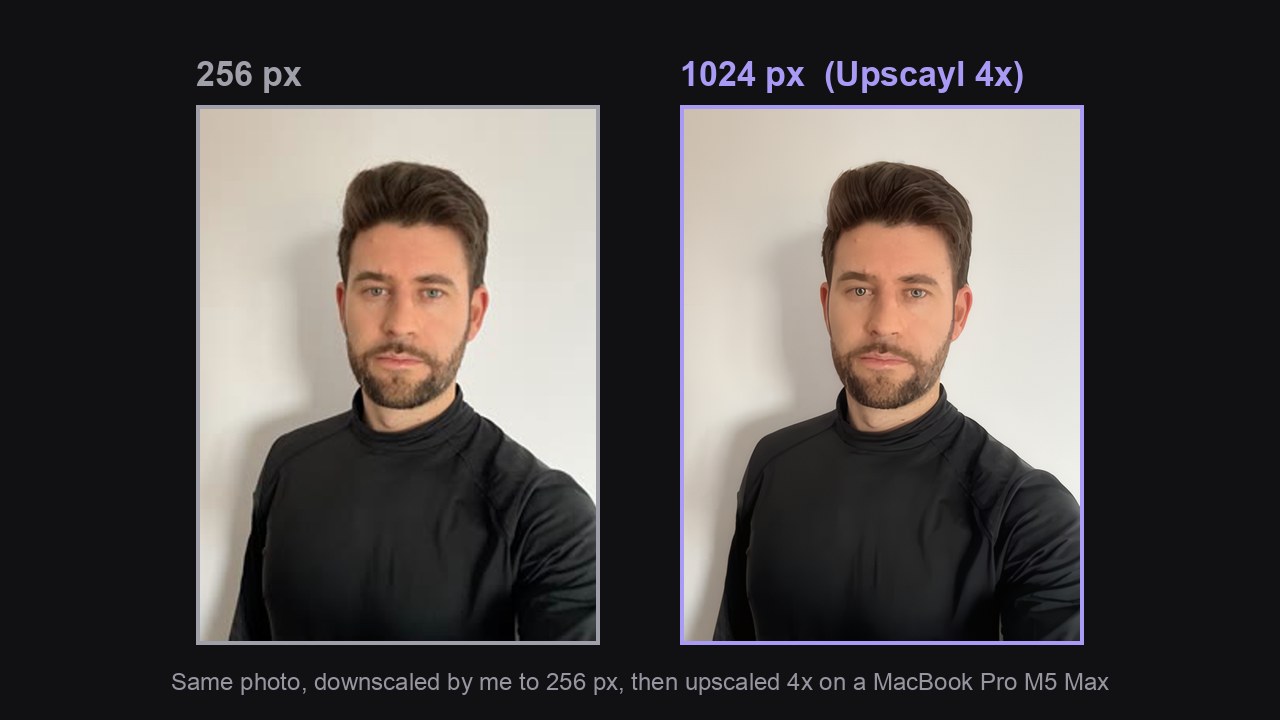
I ran it on my MacBook Pro M5 Max, version 2.15.0, with the High Fidelity model. I shrank the images myself to test it:
- A photo of me, 256 pixels wide: came out 1024 pixels in 1.19 seconds.
- A 200x200 profile picture: came out 800x800 in 0.74 seconds.
- A WhatsApp-size photo, 480x640 and compressed: came out 1920x2560 in 2.74 seconds.
- A 64x64 logo, with the Digital Art model: came out 256x256 in 0.35 seconds.
Your times will differ, depending on your graphics card.
Contents
Install on Mac
You need macOS 12 or later. There are two free ways, pick one:
Assets under the top release. Download the file that ends in mac.dmg, open it, and drag Upscayl into Applications.brew install --cask upscaylNote: the Mac App Store sells Upscayl for $12.99. It is the same app, and the price there supports the developers. If you want it free, download it from GitHub or Homebrew.
Install on Windows and Linux
From the same releases page. On Windows, download the file that ends in win.exe and run it. On Linux there is an AppImage, a deb and an rpm.
One requirement: you need a graphics card that supports Vulkan. According to the README, most integrated graphics will not work. I did not test Windows or Linux myself.
Your first upscale, four steps
The first launch opens a welcome window with a language choice. Go through it with Next. The left side of the app has four steps, in order:
Select Image: pick the image.Select AI Model: pick a model. The next part says which.Set Output Folder: where to save. If you skip it, the result is saved next to the original.Upscayl button. The big image is saved in the folder you chose.Which model to pick
- Faces and photos of people: High Fidelity. It kept the most natural skin in my tests. Upscayl Standard added an odd ring around my eyes.
- Logos, illustrations, drawings: Digital Art. It is the model for artwork, and the one I ran the logo with.
- Commercial use. The app labels Remacri and Ultrasharp as Non-Commercial. If the image goes to a client or an ad, pick another model.
Too small an image changes the face. When I tried a 160-pixel photo, the model changed the shape of my face. At 256 pixels it still looked like me. After any face upscale, look at the result before you use it.
What it cannot do
- It cannot save an out-of-focus photo. The README says so directly: a fully blurred photo stays blurred.
- It invents detail. The model fills in what looks plausible. Do not use it on an image that must stay faithful, like a document, a license plate or evidence.
- Very heavy compression smears. When I compressed a photo very hard, the beard and skin came out smeared.
Privacy, and what Upscayl Cloud is
The app you installed runs on your computer, and your images are not uploaded anywhere. The log of my run shows the work ran on the Mac's own graphics: [0 Apple M5 Max].
Their site also offers Upscayl Cloud. That is a different, paid service, and there your images do go to the cloud. This guide is about the free desktop app.
github.com/upscayl/upscayl (AGPL-3.0, README and version 2.15.0, read November 21, 2026), App Store ($12.99, same day), topazlabs.com/pricing (Gigapixel, $149 a year list price, same day). My runs: Upscayl 2.15.0 on a MacBook Pro M5 Max, November 21, 2026.