Your Claude Code loop is stuck waiting for a yes. The one line that gets it working again
Since the November 13 update, a loop that runs a skill with allowed tools stops and asks. How to tell if it hits you, the exact settings line and where it goes, and when not to approve.
What changed on November 13
Claude Code 2.1.325 brought one change that matters for loops: a loop or a scheduled task now stops and asks before it runs a skill that declares its own allowed tools or hooks.
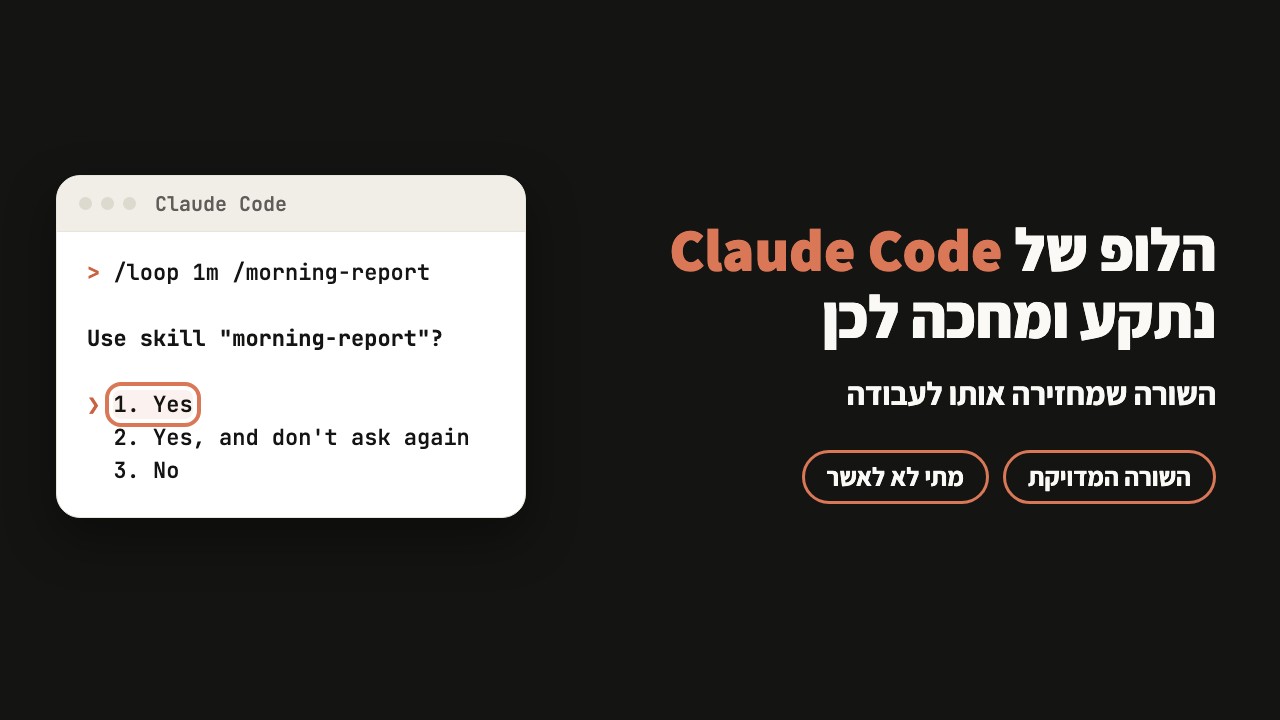
I tested it on my machine. I started a loop that runs every minute on a skill that writes a morning report. This came up:
> /loop 1m /morning-report

Use skill "morning-report"?

❯ 1. Yes
  2. Yes, and don't ask again
  3. No
A minute went by, then another. No report. The loop did not fail and showed no error. It just waits for someone to say yes.
Does it hit you
It hits you if all three are true:
- You have a loop (
/loop) or a scheduled task that runs a skill. - The top of that skill's
SKILL.mdhas a line starting withallowed-tools:orhooks:. - Claude Code runs in the normal permission mode, the one that asks before actions.
This is the top of the skill from my test. The third line is the one that triggers the question:
---
name: morning-report
allowed-tools: Bash(date), Bash(ls), Write
---
In the mode that skips all permissions (bypass permissions) the skill ran with no question. The change shows in the normal mode.
Contents
The fix, step by step
The fix is one line in the settings file that approves this skill ahead of time. After it, the loop runs it without asking.
Use skill "morning-report"?. The same name is on the name: line at the top of SKILL.md..claude, and in it a file named settings.json. If it does not exist, create it. The folder name starts with a dot, so on a Mac Finder hides it: press Cmd+Shift+. to show it.morning-report with your skill's name:{
"permissions": {
"allow": ["Skill(morning-report)"]
}
}If the file already has "allow", add only this line inside the square brackets, with a comma before it:
"Skill(morning-report)"3. No on the waiting question, then start the loop again with the same command.Want the approval in every project, not just this one? The same block goes in ~/.claude/settings.json in your home folder. I prefer the project file: the approval stays next to the skill I checked.
And if you are at the screen when the question comes up? Option 2. Yes, and don't ask again saves an approval. I did not check which file it writes to, so I go with the line in the file, which I can see and control.
How to know it worked
On the next run there is no question. On my machine it looks like this, and the report gets written:
⏺ Skill(morning-report)
  ⎿  Successfully loaded skill · 3 tools allowed

⏺ Write(report.md)
  ⎿  Wrote 6 lines to report.md
Still asking?
- Type
/permissionsin Claude Code. It lists every rule and the file each one comes from. IfSkill(morning-report)is not there, the file was not read. - Check that the name inside
Skill(...)matches the name in the question, letter for letter. - Check that the file is in
.claude/settings.jsonof the folder the loop runs in, not another folder. - Paste the whole file into Claude Code and ask it to check that it is valid JSON. One missing or extra comma breaks the whole file.
- Start the loop again. A loop that is already waiting for an answer does not reread the settings.
When not to approve
The new question was not added to annoy you. A skill with allowed-tools gets to run the tools it declares. In a loop, nobody is at the screen when that happens.
- Approve a skill you wrote, or one whose
SKILL.mdand requested tools you read. - Do not approve a skill you installed from a plugin or the internet and have not read. Read first, approve after.
- Watch for a skill that asks for
Bashwith no limit, plainBashrather thanBash(date). It can run any command on your machine.
The approval is by name. If someone changes what the skill contains, the approval stays. One more reason to give it only to your own skills.
A loop nobody is watching
Some loops run at night, when nobody will answer a question. There it is better for the loop to skip the action and keep going than to wait until morning.
Version 2.1.319 added a setting named denyInsteadOfPrompting. Instead of stopping on a question, Claude Code skips the action and keeps going. A skill you did not approve does not run, and the loop does not get stuck.
This setting only goes in your personal settings file, ~/.claude/settings.json in your home folder. A project file cannot turn it on for you. The block:
{
  "permissions": {
    "denyInsteadOfPrompting": true
  }
}
If the file already has "permissions", add only the line "denyInsteadOfPrompting": true inside it, with a comma before it.
Note: this applies to every question, not only skills. An action that would have waited for your approval just will not happen. The two work together: approve ahead of time the skills you trust, and deny everything else.
One more change from the same update: Bash commands that run inside the sandbox now ask like any other command. To keep the old behavior, add "sandbox": { "autoAllowBashIfSandboxed": true } to the settings file.
code.claude.com/docs/en/changelog (2.1.325, 2.1.319), code.claude.com/docs/en/settings, code.claude.com/docs/en/permissions, code.claude.com/docs/en/skills, checked on November 15, 2026. My test: Claude Code 2.1.325 in the normal permission mode, November 14, 2026.