A free ad for your business, from one image
Google Vids gives every regular Google account one minute of video a month at no cost. You upload one image of your product, write what happens in the video, and about a minute later you have a 15-second vertical video. In this guide: every click from my run, the prompt that produced an ad with on-screen Hebrew text, and a template you fill in for your business.
Who this is for
- You run a business and have no budget to film an ad? Start with part 2, then go through the clicks in part 3.
- You already tried and got something boring? Jump to part 6, then to the template in part 5.
- Computer only. The option is not on the phone.
Contents
What came out
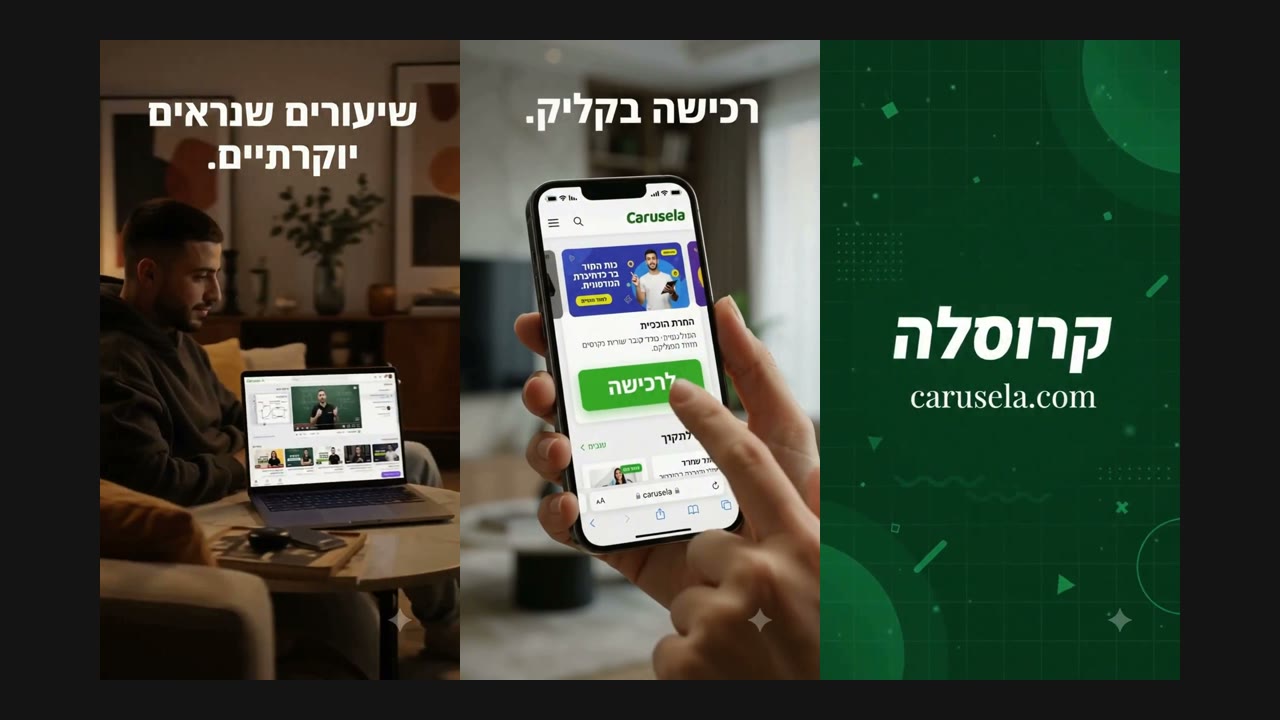
I gave it one screenshot of the home page of Carusela, my platform for courses and clubs. This is the video it made, as is, with no editing. The Hebrew text on screen came from the prompt.
What you get for free, and what you need
- One minute of video a month on a personal Google account. That is four 15-second videos. The quota resets at the start of every month.
- 720p quality. 1080p is locked on a free account. The downloaded file is 1080x1920, but the video is generated at 720p.
- What you need: a Google account, a computer, and one image of your product. A screenshot of your site or app works.
This is what the counter looked like for me after two videos. It pops up in Vids as the quota runs low:
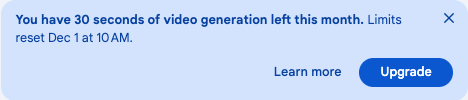
Important: every video you generate comes off the quota, even when it comes out bad. Three of my tries went before I got the video above. So copy the template from part 5 and fill it in before your first click.
Every click, step by step
Open a new video in Google Vidsvids.new on your computer, signed in to your Google account. A Let's start creating window opens. Pick Portrait so the video is vertical, and click Create AI videos.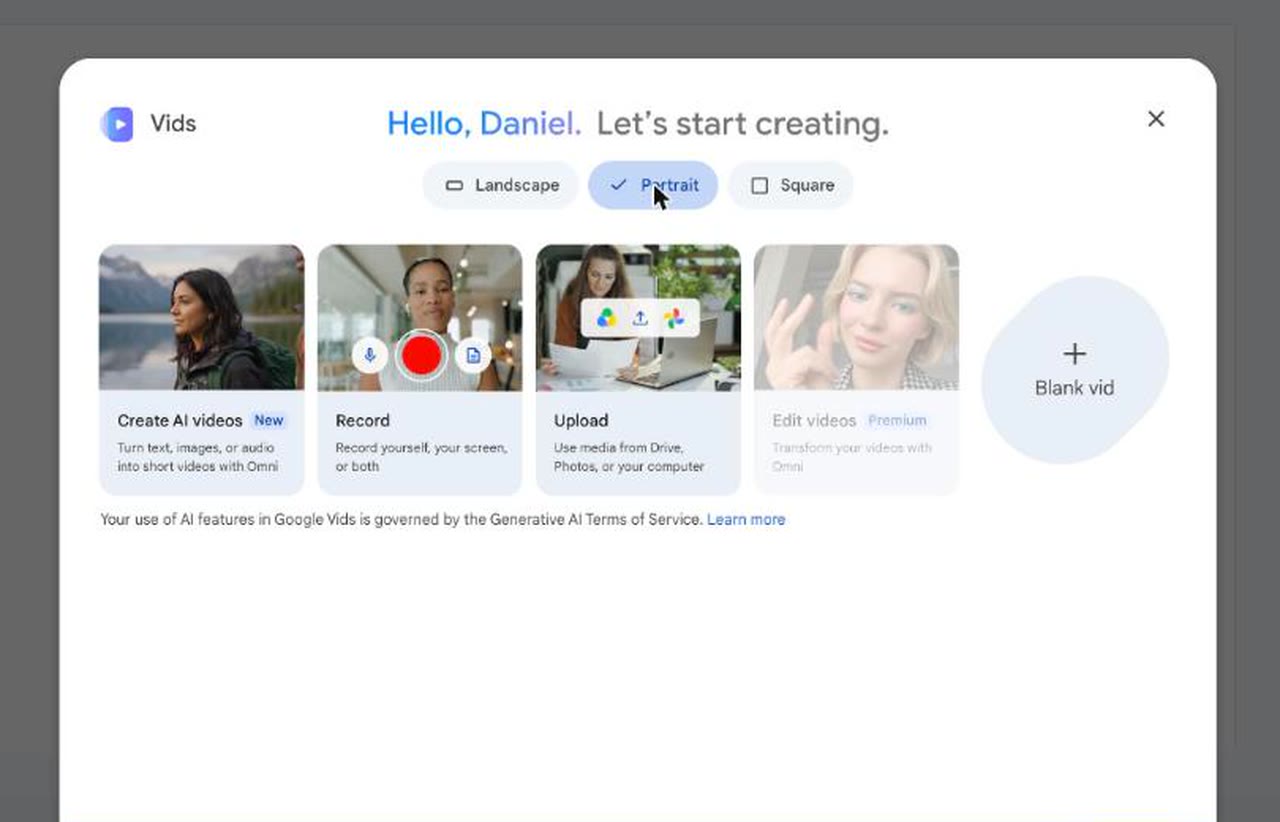
AI video clip panel opens on the right with the Create tab selected. Click Ingredients, under the text box.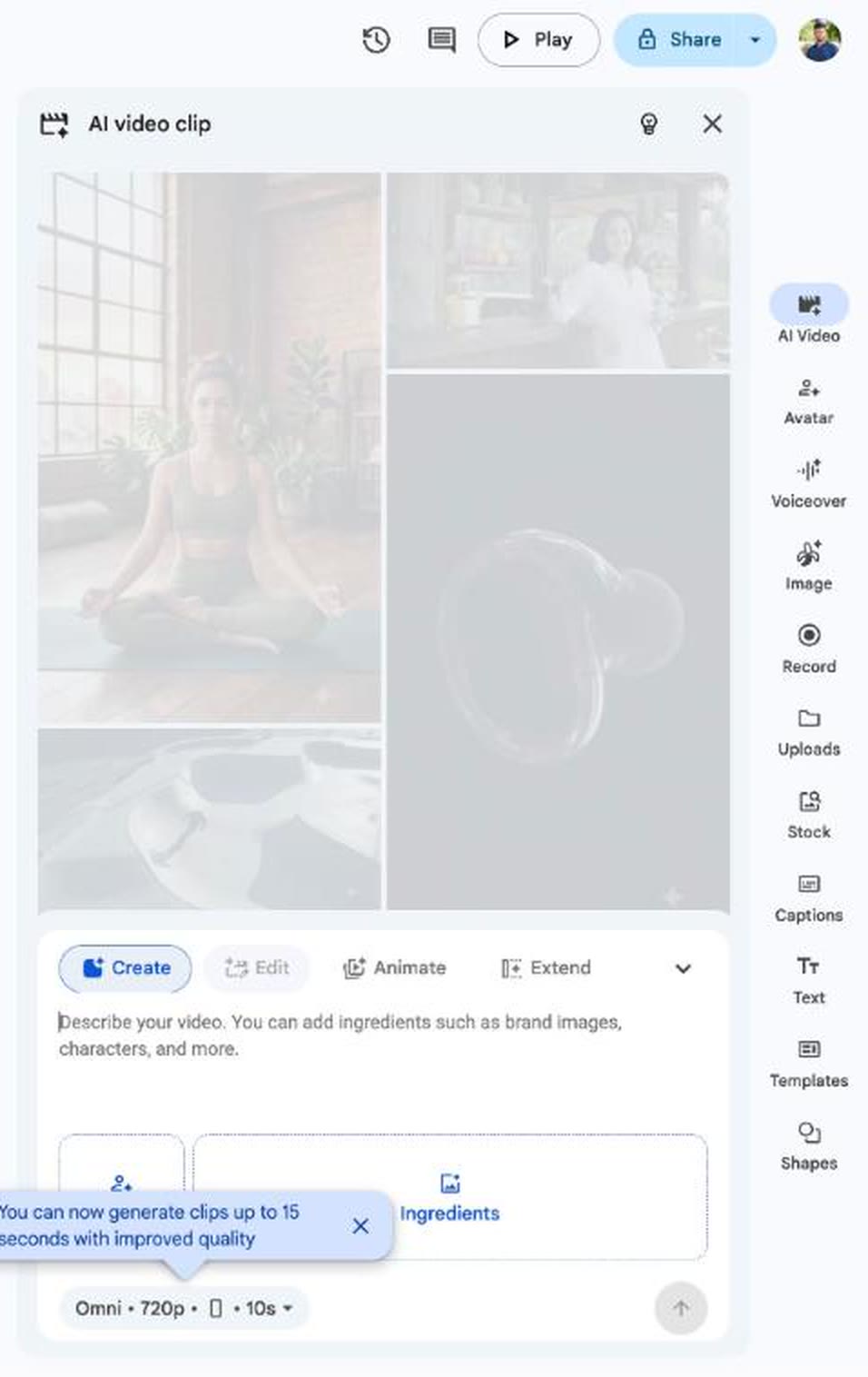
Agree.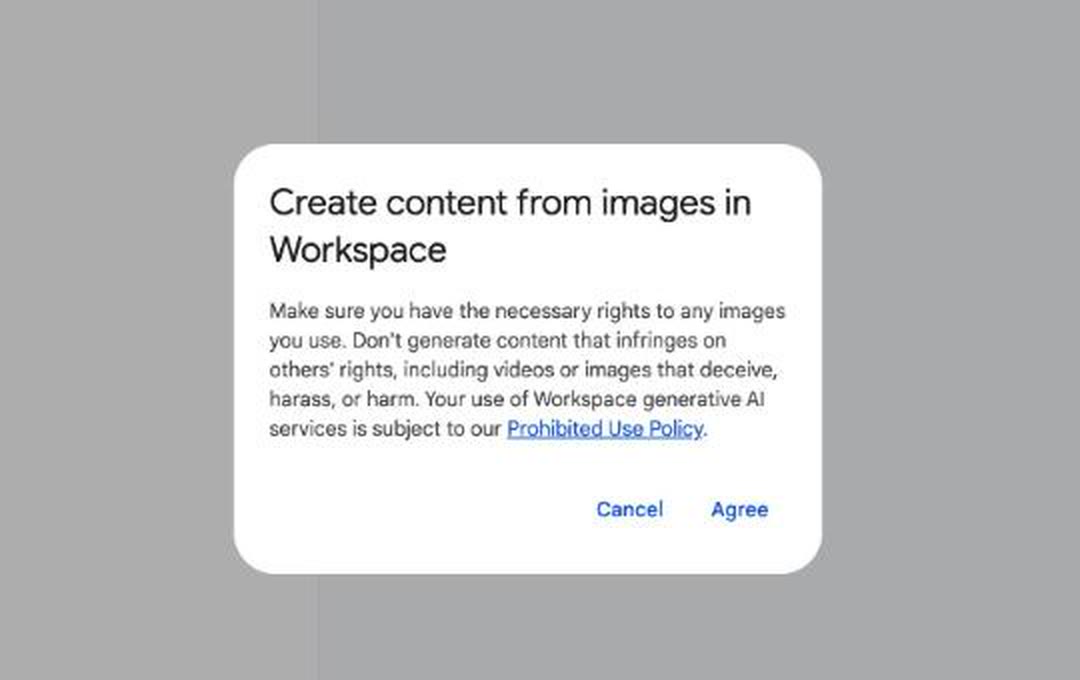
Open a file window, click Upload on the side and pick the image of your product. It shows up under the text box as @image1.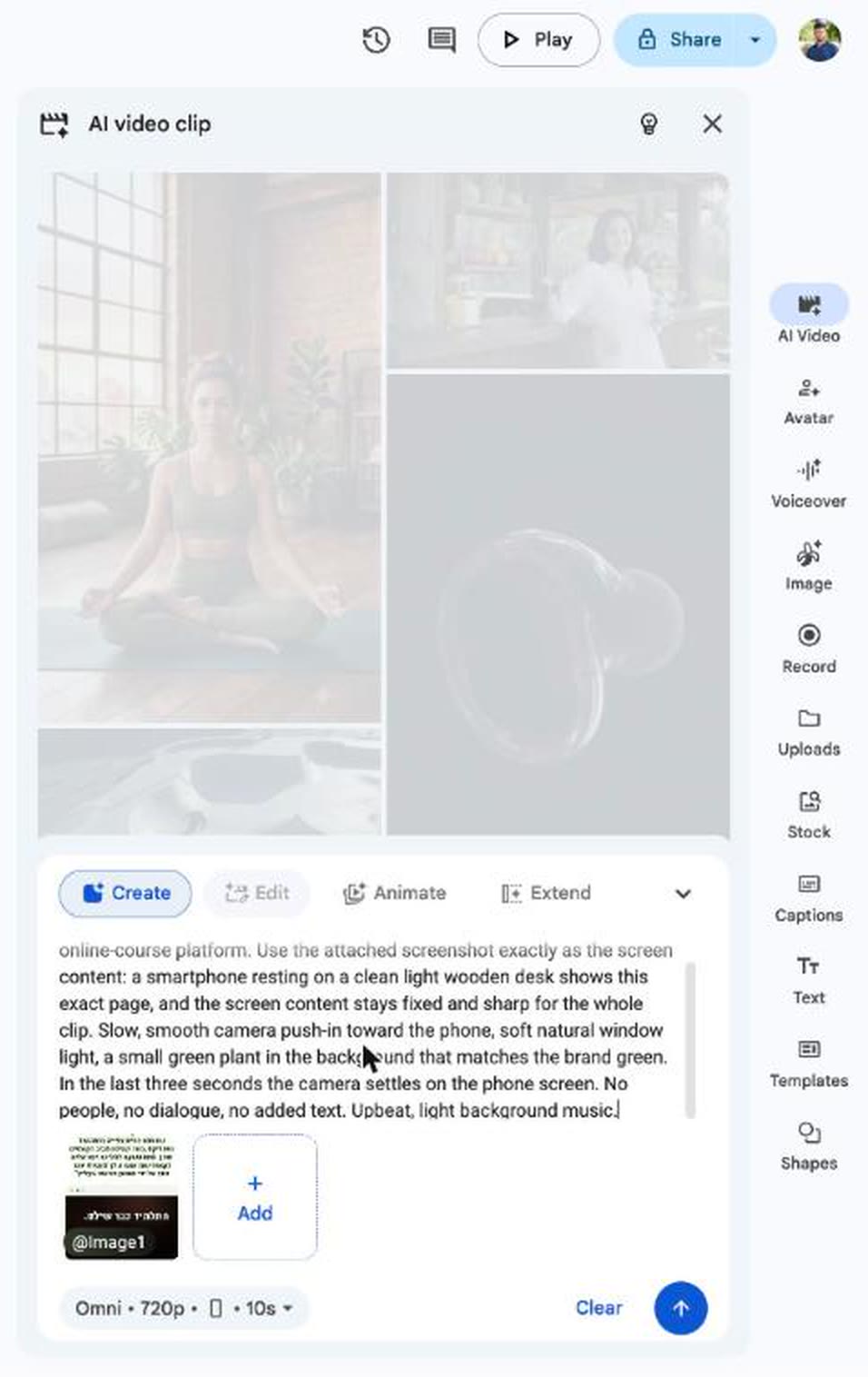
Omni · 720p. A window opens: drag Video duration all the way to 15 seconds, and check that Aspect ratio is on Portrait.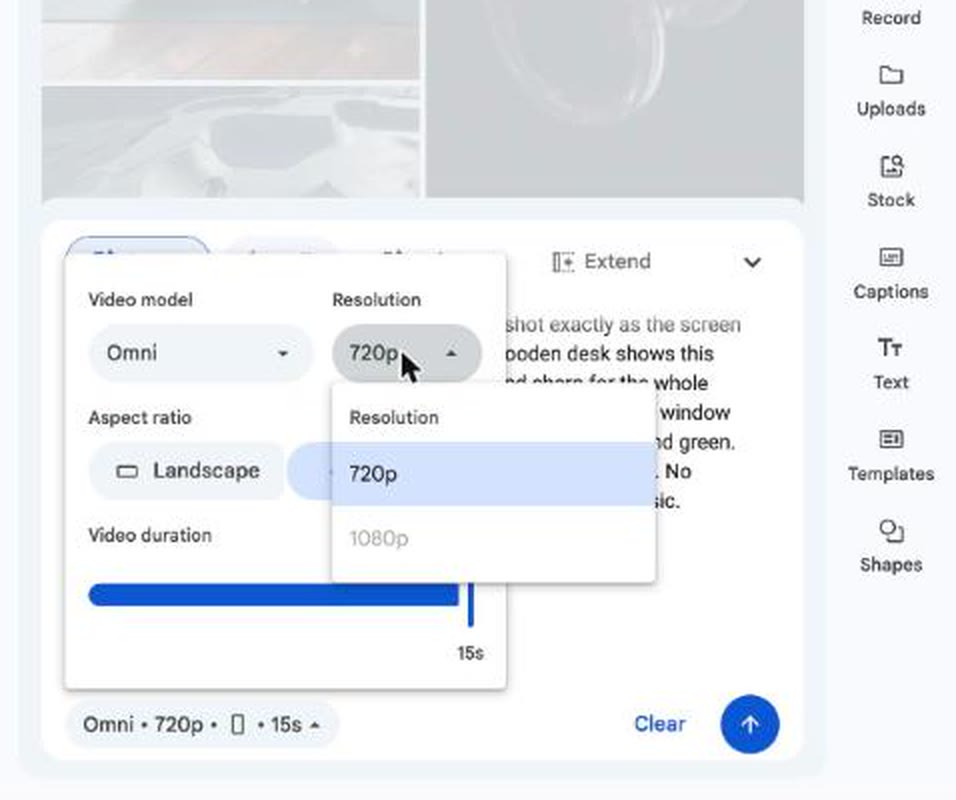
Generate. You see Your video clip is generating. For me it took about a minute.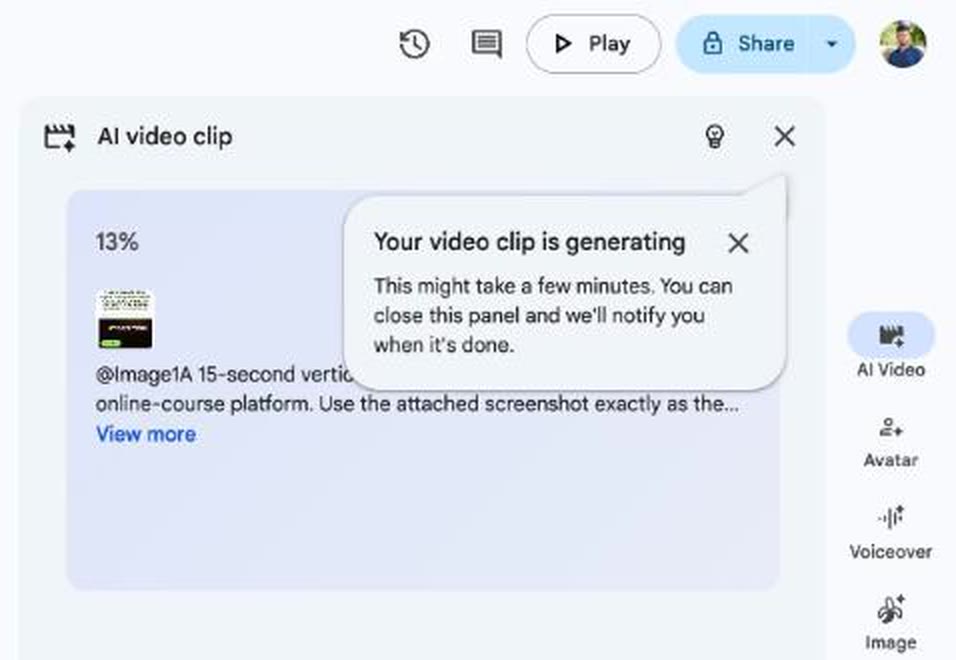
Insert. Details in part 7.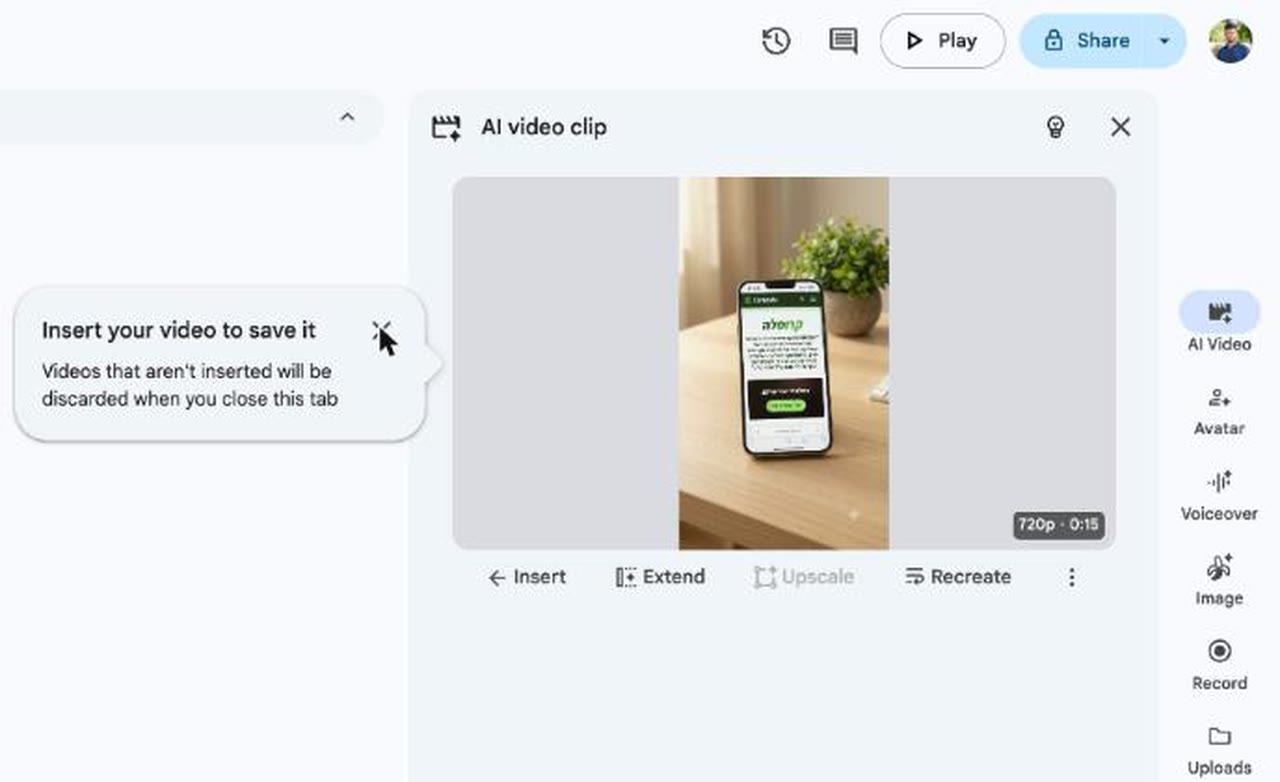
My prompt, ready to copy
This is the exact prompt that produced the video in part 1. It is in English, because that is what Google asks for, but every line that has to appear on screen is written inside it in Hebrew, in quotes.
A 15-second vertical social media ad for Carusela, an Israeli online course platform, made for an Israeli audience. Energetic, premium commercial style, rhythmic cuts on the beat, every shot has camera motion. All on-screen text is in Hebrew, written right to left, in bold white Hebrew letters, exactly as written below, perfectly spelled, never mirrored.
0 to 3 seconds: a fast, smooth camera push-in across a bright living room toward a phone held in a woman's hand. The phone screen fills most of the frame and shows the attached screenshot exactly, static, sharp and unchanged. On-screen Hebrew text: "הקורס שלך. ברמה של נטפליקס."
3 to 7 seconds: cut to a young man relaxing on a couch, watching a polished video lesson on a laptop, a row of lesson thumbnails under the player like a streaming app. Slow orbit around him. On-screen Hebrew text: "שיעורים שנראים יוקרתיים."
7 to 11 seconds: cut to a close-up of a thumb tapping a bright green button on a phone that says "לרכישה", followed by a soft success chime and a quick zoom out to the smiling buyer. On-screen Hebrew text: "רכישה בקליק."
11 to 15 seconds: clean end card on a deep green background matching the green in the screenshot. The Hebrew word "קרוסלה" in large bold white letters, and below it "carusela.com".
Audio: punchy modern electronic pop instrumental with a strong beat and a lift at 3 seconds, a soft success chime at 8 seconds. No dialogue, no voiceover, no subtitles, no other text.
What each part does:
- The first line says what it is, for whom, and in what style: a social ad, for an Israeli audience, with cuts on the beat.
- The text line asks for Hebrew, right to left, exactly as written, never mirrored. Without it I got English text.
- Four time blocks. Each one says what you see, how the camera moves, and one line on screen. Short, up to five words.
- Your image appears in the first block, "static, sharp and unchanged", so it is not altered.
- An end card with the business name and site. That is what the viewer remembers.
- The last line sets the music and what not to do: no speech, no subtitles, no extra text.
The template for your business
The same structure with blanks. Replace every pair of square brackets with your own words: descriptions in English, and the lines that appear on screen in Hebrew (or your own language). Keep the quotes.
A 15-second vertical social media ad for [BUSINESS NAME], [WHAT THE BUSINESS SELLS, IN A FEW WORDS], made for an Israeli audience. Energetic, premium commercial style, rhythmic cuts on the beat, every shot has camera motion. All on-screen text is in Hebrew, written right to left, in bold white Hebrew letters, exactly as written below, perfectly spelled, never mirrored.
0 to 3 seconds: a fast, smooth camera push-in toward [WHERE YOUR PRODUCT APPEARS, FOR EXAMPLE: A PHONE IN A CUSTOMER'S HAND]. It shows the attached image exactly, static, sharp and unchanged. On-screen Hebrew text: "[שורה 1: מה הלקוח מקבל]"
3 to 7 seconds: cut to [A CUSTOMER USING THE PRODUCT, IN A REAL PLACE]. Slow orbit around them. On-screen Hebrew text: "[שורה 2: איך זה מרגיש]"
7 to 11 seconds: cut to a close-up of [THE MOMENT OF BUYING OR THE RESULT], followed by a quick zoom out to the smiling customer. On-screen Hebrew text: "[שורה 3: כמה קל לקנות]"
11 to 15 seconds: clean end card on a [YOUR BRAND COLOR] background. The Hebrew word "[שם העסק]" in large bold white letters, and below it "[YOUR WEBSITE OR PHONE]".
Audio: [MUSIC STYLE, FOR EXAMPLE: PUNCHY MODERN POP INSTRUMENTAL] with a lift at 3 seconds. No dialogue, no voiceover, no subtitles, no other text.
Three things to check before you click:
- Every on-screen line is short and spelled right. It copies it as is.
- Every block has camera motion and a person doing something. A block with no people and no motion comes out boring. More in part 6.
- The image you uploaded really is of your business, and you have the right to use it.
Not sure how to fill it in? Paste the template into ChatGPT or Claude, tell it in one sentence what your business sells, and ask it to fill in the brackets.
Why my first try came out boring
This was my first prompt, and this is what it produced:
A 15-second vertical promo video for Carusela, an Israeli online-course platform. Use the attached screenshot exactly as the screen content: a smartphone resting on a clean light wooden desk shows this exact page, and the screen content stays fixed and sharp for the whole clip. Slow, smooth camera push-in toward the phone, soft natural window light, a small green plant in the background that matches the brand green. In the last three seconds the camera settles on the phone screen. No people, no dialogue, no added text. Upbeat, light background music.It did exactly what I asked. The problem was what I asked for: one shot, no people, no text, and a camera moving in slowly for 15 seconds. It does not look like an ad. It looks like a picture that moves.
- An ad tells a short story: what you get, how it feels, how easy it is to buy, and who you are. Four blocks, one idea each.
- People and motion. Someone holds the phone, someone watches, a thumb taps a button. The camera moves in every block.
- Text on screen, in the viewer's language. My third try was already a good video, but the text was in English. For an Israeli audience that does not work, so I added the Hebrew line from part 4.
Save and download the video
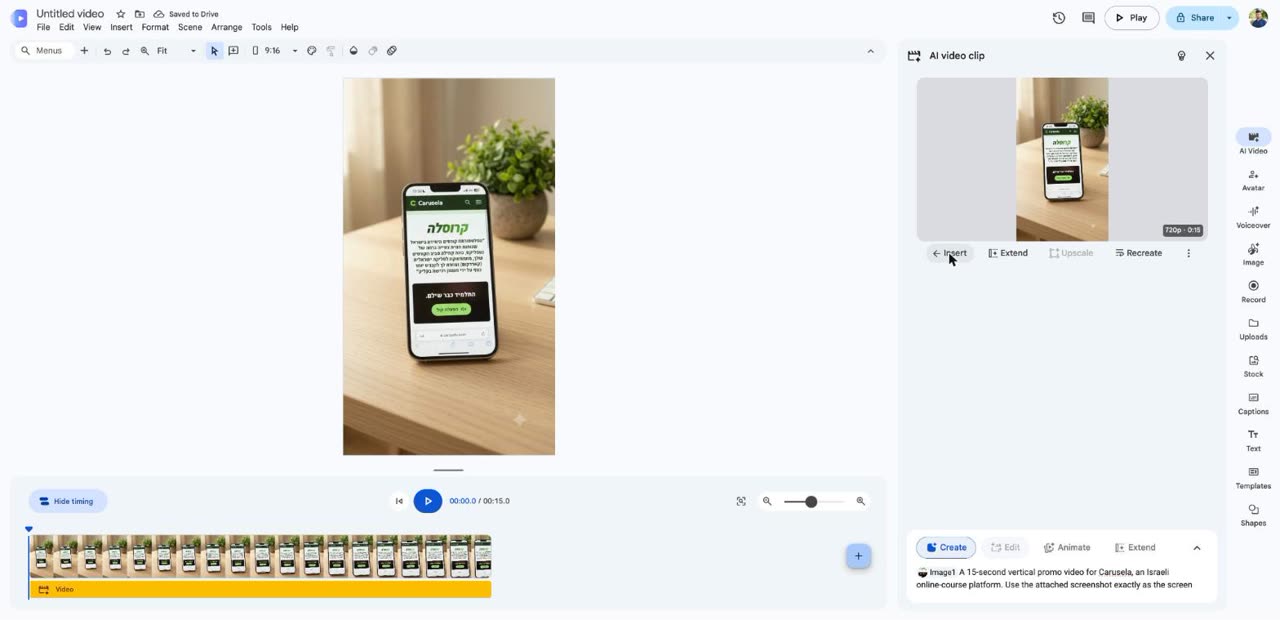
Insert under the video in the panel, and pick Insert in new scene. Google says a video that is not inserted is discarded when you close the tab.Replace and swaps out the selected video. Click an empty spot on the canvas first to clear the selection.File, then Download, then MP4. The file downloads to your computer, ready to upload to Instagram.Note: the download includes every scene in the document, back to back. Want just one video? Open a new vids.new for it, or delete the other scenes before you download. The document itself is saved in your Google Drive.
What does not work
- No Hebrew voiceover. Google does not support Hebrew for video generation, which is why the prompt is in English. Only the on-screen text comes out in Hebrew, when you write it in quotes.
- Small text inside the image can change. On my phone screen a word showed up that does not exist. The big lines I wrote in the prompt came out exact, but small text inside the screenshot gets rewritten.
- A small watermark in the bottom right corner, plus a hidden marker Google adds to every generated video.
- The music in the video is generated with it. Keep it, or swap in your own music on Instagram.
How to know it worked
It worked if you have a vertical 15-second MP4 that shows your product, with correct on-screen text in your language.
It did not? In order:
- No
Create AI videosbutton? Check that you are on a computer, not a phone. Google also recommends setting your Google account language to English. - The video came out 10 seconds? You did not move
Video durationin step 6. - The video came out horizontal? You did not pick Portrait in step 1 or step 6.
- The text came out in English? The Hebrew line is missing from the prompt, or the on-screen lines were not in quotes.
- It says the quota is used up? It resets at the start of the month. The counter shows the exact date.
Did you get an ad out of it?
Send it to me in an Instagram DM, together with the prompt you filled in. If something came out strange, I will tell you which line to change.
@danielthegoldman