Claude Code Remote Control: continue from your phone
Started a task on your computer and want to keep going from your phone? Remote Control opens the same Claude Code conversation on another device. Builds and tests still run on your computer, so keep it awake and connected.
By Daniel Goldman · Updated
Already have a conversation open?
In the Claude Code prompt, including the VS Code extension, enter:
/remote-controlIf a first-use confirmation appears, select Enable Remote Control. Open the session link, or open Claude on your phone, tap Code and choose the conversation with the computer icon. Use the same account and organization on both devices.
Open the Claude session listNo conversation open yet? Start with the account check and new-session steps below.

What you will have
- Remote Control enabled in Claude Code
- Your local session visible in the Claude mobile app
- The ability to read, send messages, and approve actions remotely
- A clear understanding of what stays local and how to disconnect
Before you start
- The official Requirements section lists Pro, Max, Team, and Enterprise plans. Check eligibility in your account
- Claude Code signed in through claude.ai, not an API key alone
- The Claude mobile app, or a browser that can open claude.ai/code
- Your computer stays awake, online, and keeps the Claude Code process running
- On Team and Enterprise, an Owner must enable Remote Control for the organization
Steps
Check your account and computer
In your terminal, start Claude Code from the project folder and accept its workspace trust prompt if shown. Inside the conversation, run this command to check the active account and plan.
/statusIf you are not signed in through claude.ai, run /login and choose your claude.ai account. An ANTHROPIC_API_KEY alone is not enough. In the VS Code extension, use the Sign in button if you have not signed in yet.
Check: /status shows a claude.ai login and a supported plan.
Enable Remote Control
For an existing conversation, enter /remote-control in its prompt and confirm the connection if asked. For a new conversation, open your computer's terminal in the project folder and run:
claude --remote-controlIn the terminal, running /remote-control again opens a status panel with the session link and QR code. In the VS Code extension, use the link in the conversation or connection indicator; the extension does not display a QR code.
Check: the link opens the intended conversation, and the computer stays connected.
Optional: connect new sessions automatically
To connect just one conversation, use /remote-control. For automatic connection, choose the setting for the app you use:
- Terminal: open
/config, find Enable Remote Control for all sessions, and selecttrue. - Desktop app: open Settings, then Claude Code, and turn on Connect new sessions to Remote Control.
- VS Code extension: click or type
/in Claude Code's prompt box to open its command menu, then choose Settings, and turn on Enable Remote Control for all sessions.
In the terminal setting, false turns auto-connect off unless your organization enforces it through managed settings. default clears your choice and follows your organization's default, or Claude Code's current default if none is set.
Not connecting in one project? Its settings may disable auto-connect. In .claude/settings.json or .claude/settings.local.json, remoteControlAtStartup: false overrides even an organization's automatic connection setting. A true in these project files is ignored. Check why it was disabled before changing it.
Check in the terminal: after enabling auto-connect, start a new conversation with plain claude in the same project. Before running any connection command, open Code in the phone app and confirm the new conversation appears with a computer icon and green status dot. A wide terminal also shows /rc active. If the session is missing, recheck the settings above; running /remote-control would connect it manually and would not prove auto-connect worked.
Menu names and setting rules checked against the official auto-connect instructions on October 14, 2026.
Open the session on your phone
Open the Claude app, choose Code, and find the session with a computer icon and a green status dot. You can also open the session URL or scan the QR code shown on your computer.
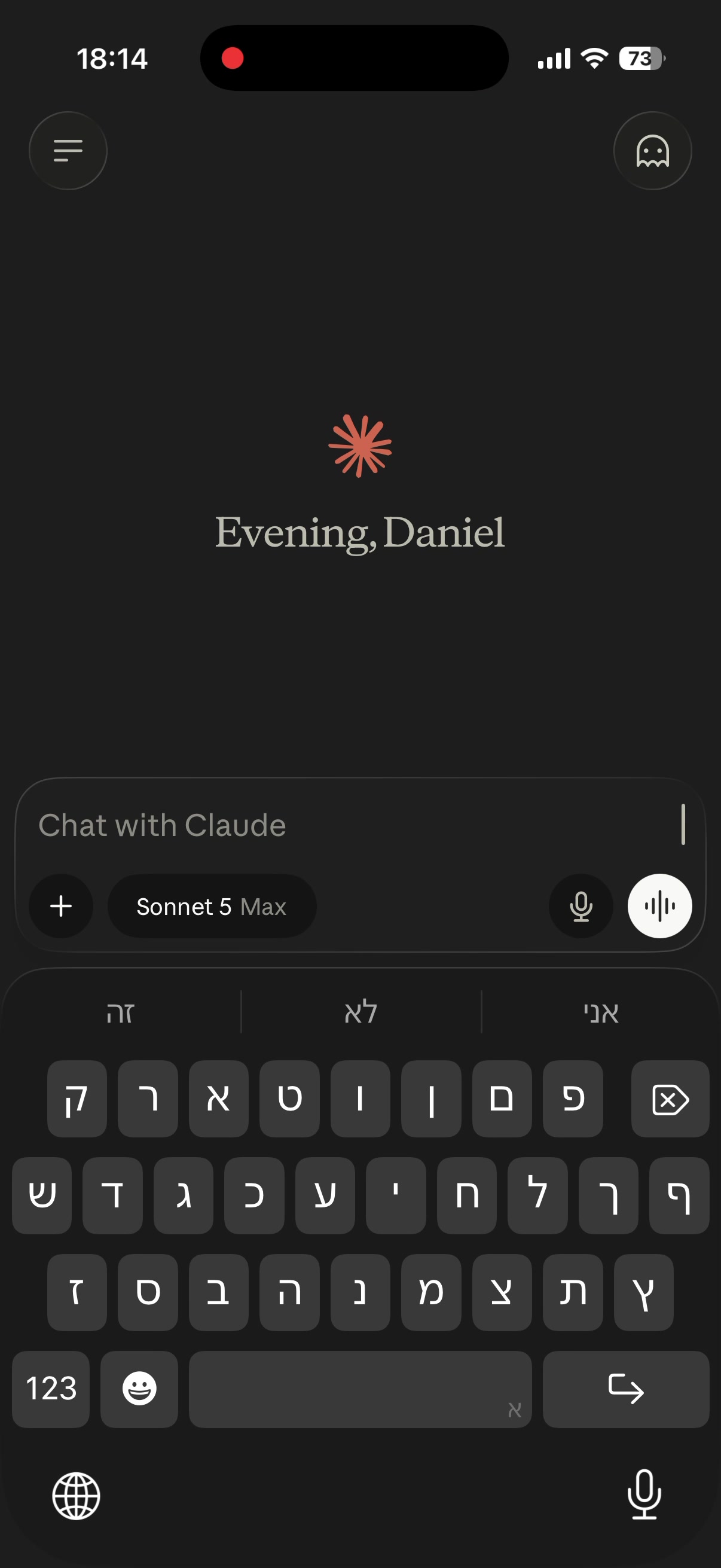
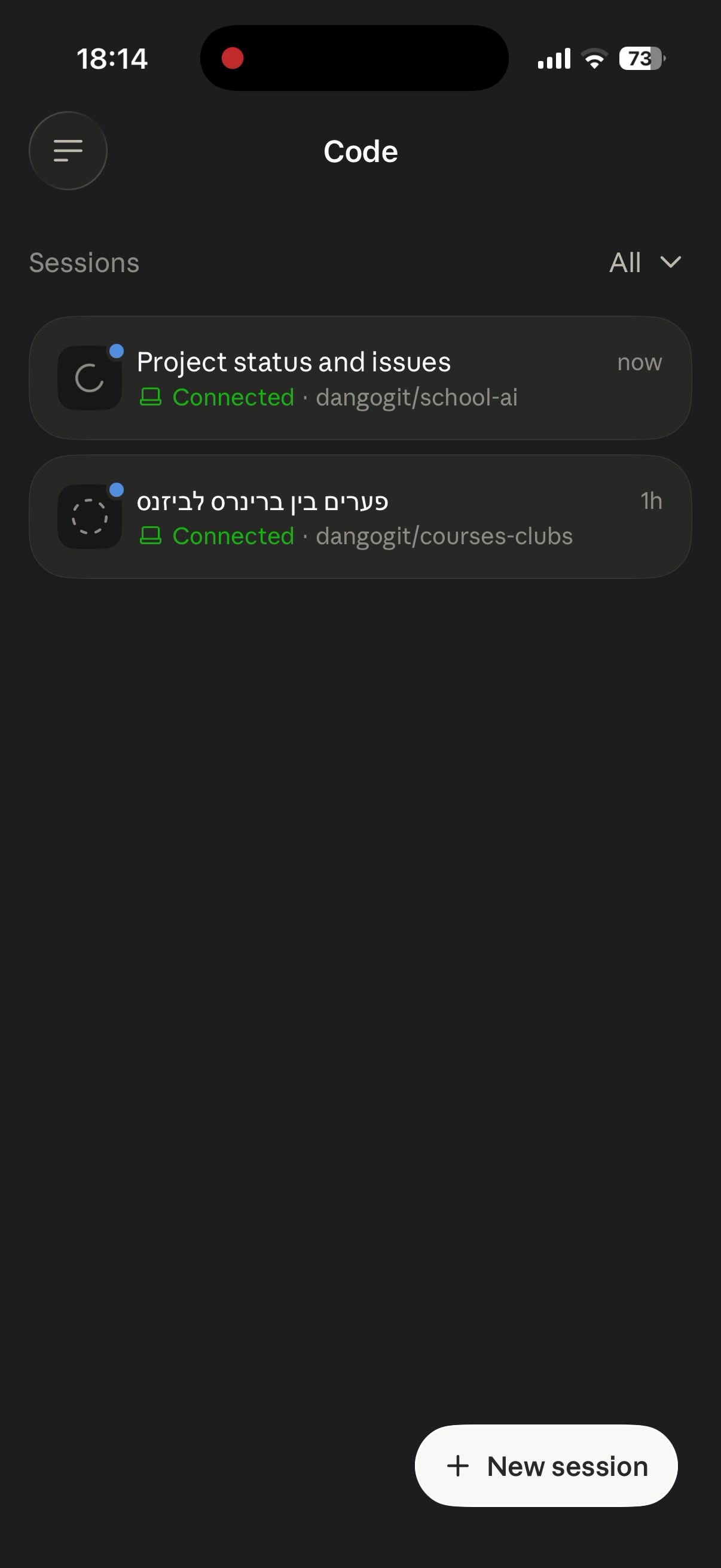
Check: the conversation from your computer appears on your phone. Its title may come from the conversation rather than the project name.
Keep working in the same session
You can send a message from your phone, follow task progress, see subagents and workflows, attach a screenshot or file, and answer questions or permission prompts. Your files and tools do not move to the phone. Claude Code continues to access them from your computer.
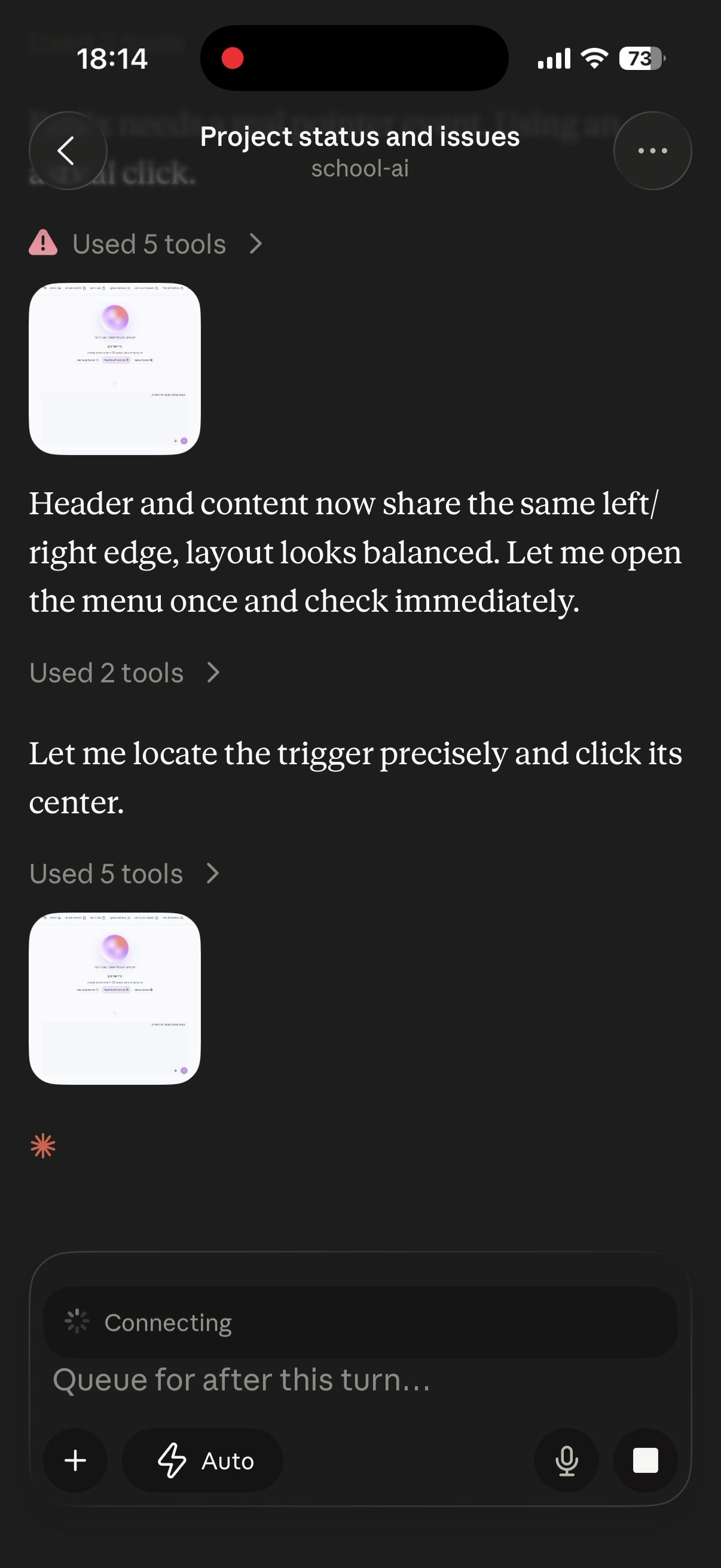
Check: send a test message from your phone and confirm it appears in the same session on your computer.
Stay in control and disconnect
- Do not close the terminal or stop the Claude Code process
- If the computer sleeps or the network drops, the session reconnects when the machine returns
- In an interactive session you can keep working locally during an outage. The roughly ten-minute timeout applies to server mode,
claude remote-control, notclaude --remote-control - In the terminal, open
/remote-controland choose the disconnect option in its status panel. In the VS Code extension, running the command again disconnects
What stays local?
Code execution and filesystem access stay on your computer. The connection makes outbound HTTPS requests and does not open an inbound port. The session transcript and tool activity are stored on Anthropic servers to keep devices synchronized, under Anthropic's data usage policy.
Troubleshooting
Remote Control requires a claude.ai subscription
In the terminal, run /login and sign in through claude.ai; in the extension, use Sign in. If ANTHROPIC_API_KEY is set in the environment, remove it from the session first.
Your organization disabled Remote Control
On Team or Enterprise, an Owner must enable Remote Control in Claude Code admin settings.
The session is missing on your phone
Confirm that the phone and computer use the same account and organization. In the terminal, open /remote-control to check the connection status and session link. In VS Code, use the link already posted in the conversation.
The session disappeared after closing your computer
Remote Control is not a cloud runtime. The local Claude Code process must keep running.
You see an alternate API endpoint error
Remote Control requires direct access to api.anthropic.com. Remove a custom ANTHROPIC_BASE_URL and restart.
You are asked to verify your device
If your organization enabled Trusted Devices, complete the sign-in and device verification shown on your phone or browser. An ordinary sign-in alone is not sufficient in this case.
What to work on next
For more practical AI agent workflows, explore my Claude Code guides or continue with my Codex guides.