The Claude Code starter guide for people who do not code
Claude Code is best at writing code. And still, many of the people using it have never written a line of it. The reason is simple: behind everything you do on a computer there is code, and now there is someone who writes it for you when you ask in plain language. This guide is the short path from install to a first task that works.
What you will learn
- Why a tool built for programmers is the most useful thing for people who do not code
- How to install it through the desktop app, with no terminal and no commands
- What happens in the first session and when it asks for approval
- Three first tasks you can copy as they are: the Downloads folder, receipts to a sheet, a landing page
- How to phrase a request so you get a result and not a guess
- What it costs and where to go next
Contents
Why a coding tool is for you
The site you browse, the image you open, the sheet that fills itself from your email, the automatic message that lands in your DMs. Each one is code somebody wrote. Until now, anyone who could not write it depended on someone who could: a developer, a freelancer, or a ready-made tool that does roughly what you wanted.
Claude Code changes the other side of that equation. You tell it in plain language what needs to happen, and it writes the code, runs it, checks that it works, and shows you the result. You do not need to understand the code. You need to know what you want and how you will know it worked.
The examples in this guide are real. The message I send in DMs to anyone who comments a keyword, the matching of email receipts to my credit card statement, the site you are reading right now: Claude Code built all of them for me, and most of them I would never have written by hand.
What you need before you start
- A Claude account on the Pro or Max plan. Claude Code is included in both, at no extra cost.
- A Mac or Windows computer. On Windows you also need Git for Windows (a one-minute install, link in the next step).
- One folder you are willing to let it work in. Not the whole computer, one folder.
- Twenty free minutes. The install takes two, the first task takes the rest.
Step 1 - Install without a terminal
If you do not code, the right way in is the Claude desktop app. It has three tabs: Chat for conversation, Cowork for working on files, and Code, which is Claude Code with windows, buttons, and a view of every change. No black screen.
- Mac: download for macOS (one build for Intel and Apple Silicon).
- Windows: download for Windows, then Git for Windows. Restart the app after installing it.
- Open it, sign in with your account, and click the Code tab.
Prefer a terminal? That works too, one command. On a Mac:
curl -fsSL https://claude.ai/install.sh | bashOn Windows, in PowerShell:
irm https://claude.ai/install.ps1 | iexThen type claude inside the folder you want to work in. Both roads lead to the same tool. The guide continues with the app.
Step 2 - The first session
In the Code tab, pick a folder. That is where it will work: read files, write files, run things. Start with a new empty folder, or with Downloads if the first task is to tidy it.
Write the first request in your own words. No jargon needed. A sentence like "tidy this folder by file type" is an excellent request.
When it asks for approval. On Pro and Max the starting mode is automatic: it edits files and runs commands without stopping at every step, and a safety layer blocks dangerous actions. If you want it to ask before every change, say so in the request itself (the prompt at the end of this guide does exactly that), or press Shift+Tab to switch modes.
When it finishes, it explains what it did. Do not settle for the explanation. Ask to see it: "open the file for me", "show me the folder". A result you can see is a result.
Step 3 - Three first tasks with no code
Three requests you can copy as they are. Each gives a visible result within minutes, and each teaches you something about how it works.
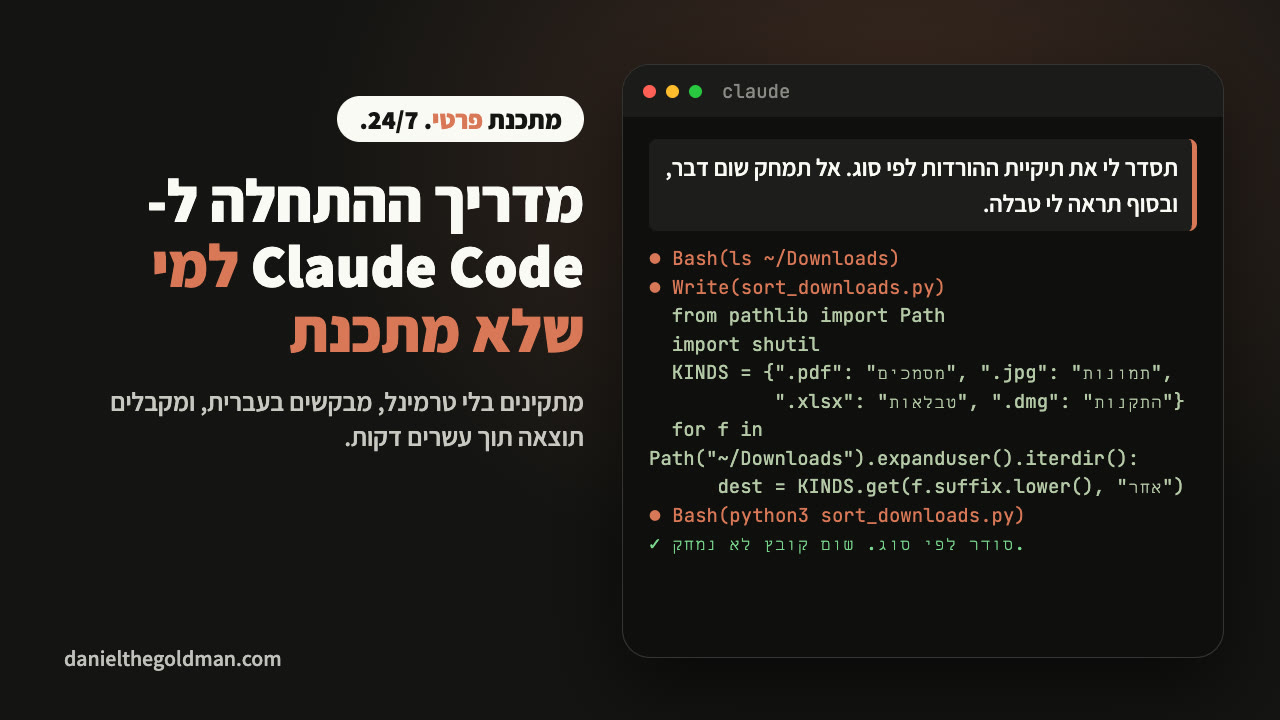
1. The Downloads folder
Tidy my Downloads folder.
Go through every file, create subfolders by type (images, documents, spreadsheets, installers, other), and move each file into the right one. Do not delete anything and do not rename anything.
When you are done, show me a table: how many files went into each folder, and what stayed outside and why.
Notice the last two lines: "do not delete" and "show me a table". That is how you ask someone who works for you, and that is how you ask it.
2. Receipts to a sheet
I have a folder of receipts (PDFs and photos).
Go through all of them, pull the business name, date and amount from each receipt, and build one Excel sheet with a row per receipt and a total per month.
If there is a receipt you could not read, put it in a separate list instead of guessing.
Open the file for me when you are done.
This is the simple version of what I run every month. The full version, which pulls the receipts straight from email and matches them to the card statement, is in the receipts guide.
3. A landing page
Build me a one-page landing page for my service: [write two sentences about the service and who it is for].
A headline, three benefits, a contact button that opens WhatsApp to [your number], and a clean design.
Save everything in a new folder and open the page in my browser so I can see it.
Here you see the idea of this guide with your own eyes for the first time: it writes code, you get a page. If something is not to your taste, tell it what to change, like you would tell a designer.
Step 4 - How to ask so it works
- Outcome, not steps. "Build me a sheet of all the receipts" beats "open the first file". It plans the steps itself.
- How you will know it worked. Tell it what counts as done: "when I open the file and see a row per receipt". Without that, "done" is a guess.
- Show me. Ask it to open the result, run the check, or take a screenshot. Always.
- Limits inside the request. "Do not delete", "do not send anything out", "ask before changing anything outside this folder". It respects that.
- When it gets it wrong, say what you saw. "The sheet is empty" beats "it does not work".
What it costs
As of September 5, 2026, per the Claude pricing page: Pro is $20 a month (or $17 billed yearly), and Max starts at $100 a month with five times the usage, or $200 with twenty times. Claude Code is included in both. For the kind of tasks in this guide, Pro is enough to start. If you hit the usage limit every day, that is the sign to upgrade.
What I pay: I run it most of the day and sometimes overnight, so I am on Max. In shekels, with VAT, that comes to about 700 a month, and it is the cheapest programmer who ever worked for me.
The prompt to start with
Copy this as your first request. It sets the working rules between you, then starts your task.
I am not a programmer. This is the first time I am working with you.

Treat me as someone who knows what they want but does not know code:
1. Before any action that changes files, deletes something, or sends anything out, tell me in one sentence what you are about to do and wait for my OK.
2. Never delete files. If something has to go, move it to a folder called "to-review".
3. When you are done, show me the result yourself: open the file, run the check, or take a screenshot. "Done" without proof does not count.
4. If something is unclear, ask one short question instead of guessing.

My first task:
[write one or two sentences about what should happen, and how you will know it worked]What next
- From chat to system: the next step, giving it whole tasks, connecting tools, and teaching it your preferences.
- The cheat sheet: one page with the commands that save time.
- The receipts guide: task two from this guide, the full version, from email to card matching.
Finished your first task and want to build something of your own? If you need help choosing the next step and checking what Claude Code changed, read about my AI development mentoring to see whether it fits your project.
Stuck halfway?
Paste it the error message as it is and write "what is this and what do I do". That works most of the time. If not, DM me on Instagram with a screenshot.
@danielthegoldman